How to Make Content Planner with No-Code Builder
 Nikolay KononovEditor at Kineto Mag
Mar 19, 2026
Calendar chaos, missed trends, and jumping in the hype when it's waning… Create an app and don't give a damn!
First, let's agree on the terms. Vibe coding is for those who want to develop an app with a help of AI. No-coding is for those who want to type in their requirements for an app into a prompt and receive a ready-made product. So, we're talking about no-code.
Over the past year, a dozen no-code app builders have emerged. Each has its pros and cons, but Kineto is undoubtedly the most suitable for creators. Below are some major tips for quickly and cheaply creating a custom content planner tailored to your needs.
Give the AI its own role
A good place to start is by typing "Imagine you're an experienced UI designer with X-level experience" into the prompt. This immediately simplifies the AI's work by providing it with a product framework.
Be more precise
The more precise the prompt, the better the result. But remember, that being detailed doesn't equal being clear. It's better to start by explaining what you want based on similarity rather than by providing detailed product requirements.
For example, prompt it like this:
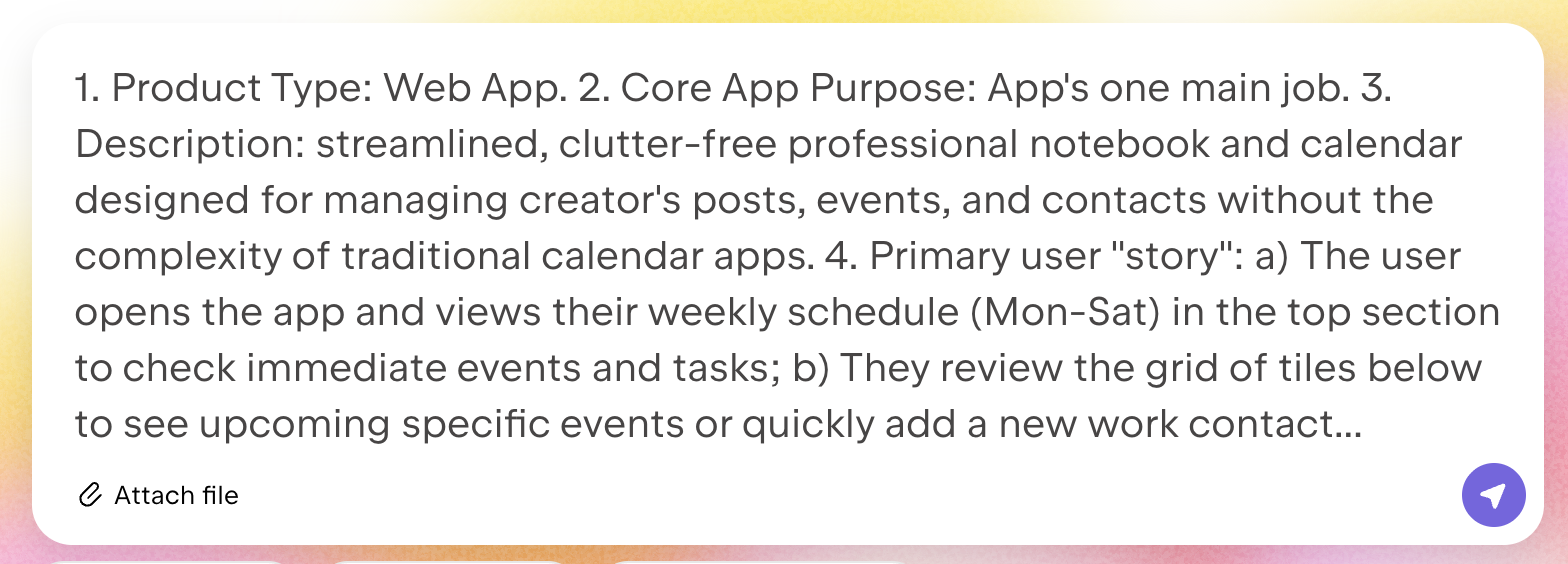
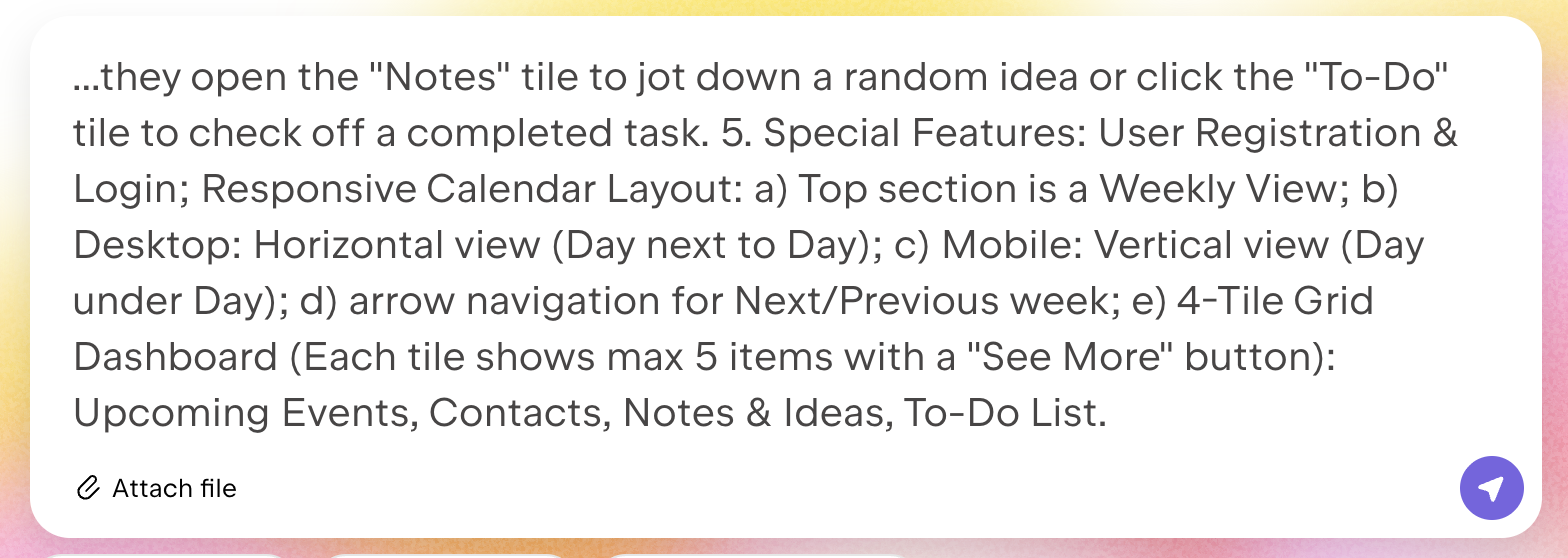
An important caveat: if you need to describe the layout precisely, don't include all the paragraph indents and other small details in the prompt; the AI may get confused. Better edit this later.
Use pop culture refs
Neural models usually produce excellent results when you describe your custom style by referencing a specific, well-known cultural phenomenon, such as a TV series or movie.
However, references to Apple-like products are unsuitable because their product designs are sterile and overly nuanced. References to Sex and the City, Stranger Things, a Roaring Twenties-era newspaper, Art Deco, and Bauhaus are excellent, though!
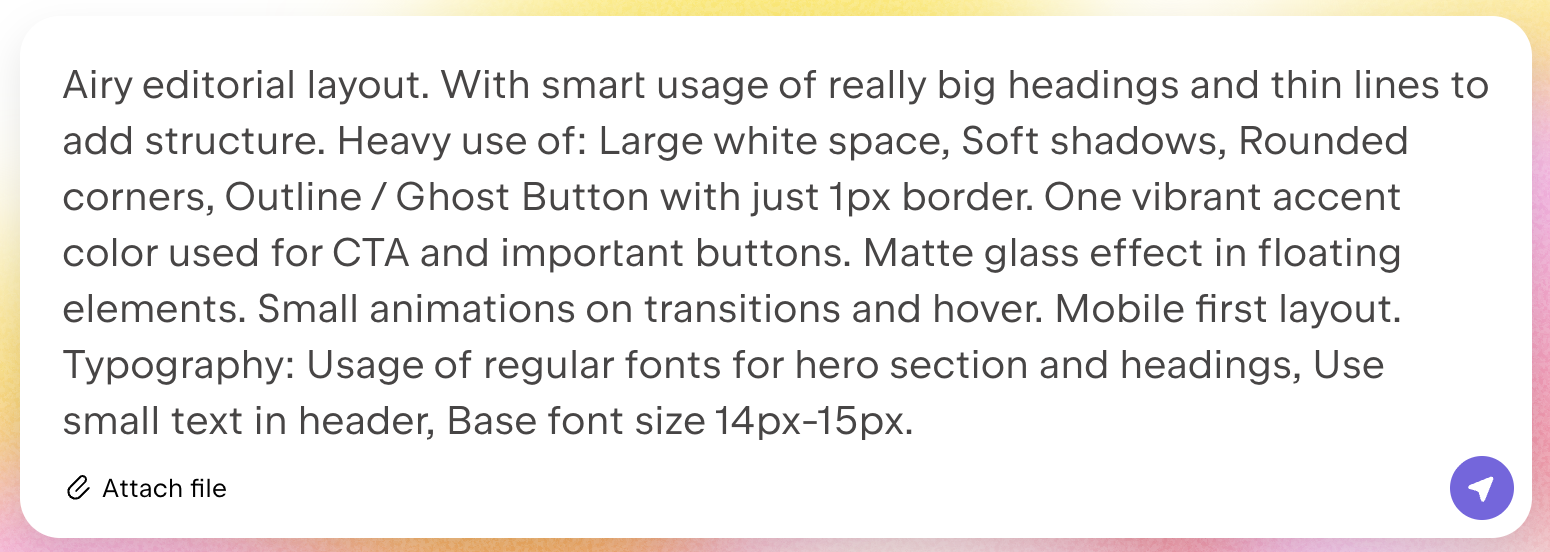
Create a design on your own!
If you select to use your own style, you can describe it or attach an image so the AI can use its palette or overall style for your app.
Alternatively, choose one of the built-in design styles
Kineto and possibly some other no-code builders will automatically suggest styles for your app. The AI will show them to you after the initial prompt. These styles can be completely changed with incremental edits – even beyond recognition. Just ask.
Effective: Make small, focused changes. Ineffective: Cramming several unrelated changes into a single request.
Use Key Points as a comprehensive, changeable task list…
When the Kineto presents you with Key Points, you can review this list, check it and edit the tasks as needed.
…but the finished app should be edited task by task
If you have already published a built app and received a link to it, and then you want to change several things at once, submit a request for each topic you want to edit. After the changes are successful, click the Publish button again to update the app using the link.
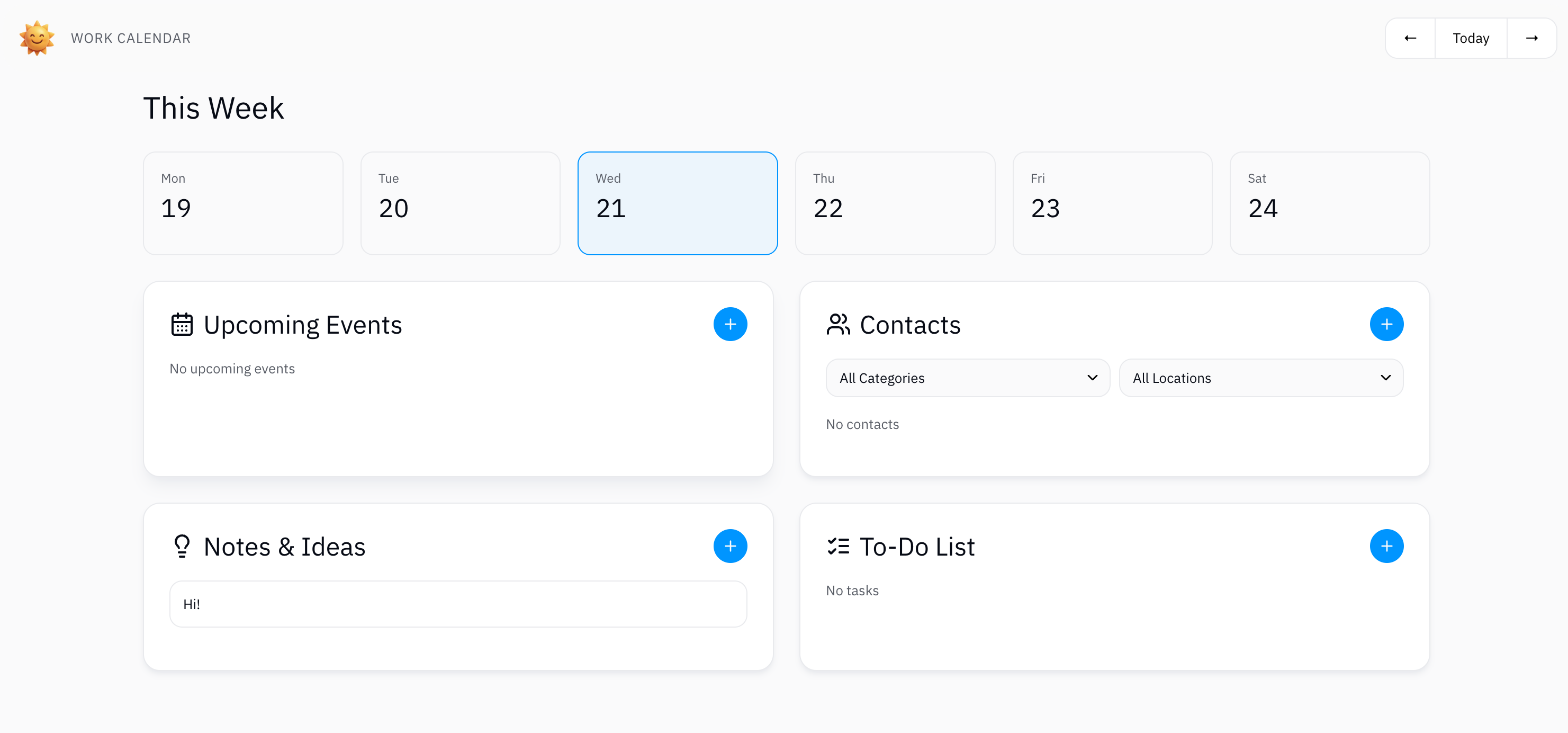
You can see a content planner created this way here. Feel free to use it if it suits your needs!
Nikolay KononovEditor at Kineto MagMar 19, 2026